
It allows you to seamlessly sign business, personal, and official documents, such as:
- Financial statements,
- JPK files (Standard Audit File for Tax),
- European Single Procurement Documents (ESPD / JEDZ),
- Contracts and commercial agreements,
- Acceptance protocols.
💡 Important: With Autenti Classic, you can easily sign a document that already contains signatures applied outside the platform. The order does not matter – you can be the first or a subsequent signer.
How to sign a document in 3 simple steps
- Upload your file
Drag and drop the file into the designated area on the screen, or select it directly from your device's memory.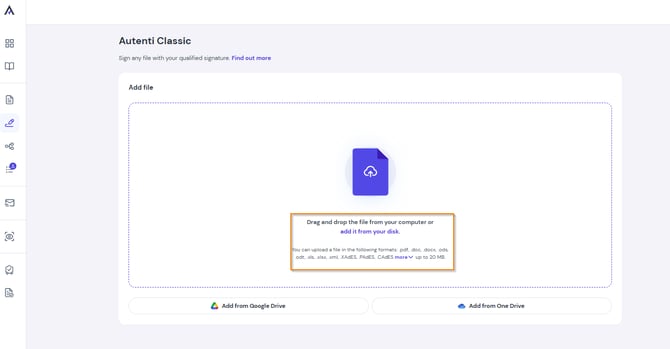
- Select the signature format and position
Choose the appropriate signature format (PAdES or XAdES). For PDF files, you can also place a visual representation of your signature anywhere on your selected page.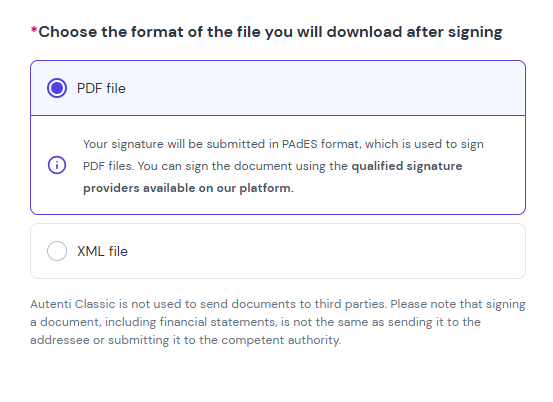
- Sign and download the document
Authorize the signature using your qualified certificate, then download the signed file to your device.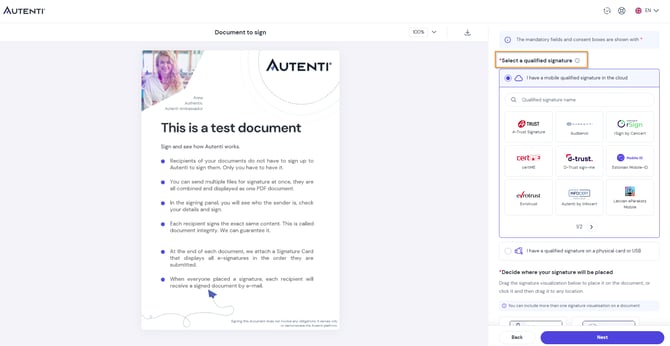
Key features
1. Supported signature formats
- PAdES format (exclusively for PDF files)
To sign PDF files in PAdES format, you can use qualified certificates such as InfoCert, SimplySign, mSzafir, and many others. - XAdES format (for PDFs and all other supported file formats)
Signatures in XAdES format can be applied using InfoCert and SimplySign certificates.
⚠️ Please note: Non-PDF files (e.g., .xml, .docx) can only be signed using the XAdES format.
2. No file storage on the platform
Documents signed using Autenti Classic are not saved or stored on the Autenti platform. Once the signing process is complete, make sure to download the finalized file immediately and save it to your device.
3. File requirements
- Maximum file size: Up to 20 MB.
- Supported file extensions: Most popular formats, including .pdf, .doc, .docx, .xls, .xlsx, .xml, .txt, .jpg, .png, .zip, .xades, .pades, and more.
Frequently Asked Questions (FAQ)
Why can't I upload my file to Autenti Classic?
The most common reasons for file upload issues are:
- Exceeding the maximum file size limit of 20 MB,
- Using an unsupported file extension.
💡 Tip for PDF files:
If you are uploading a PDF that does not yet contain electronic signatures and you encounter an error, try "flattening" it (re-saving or printing it to PDF, e.g., using Adobe Acrobat or a web browser). This usually removes corrupted layers or complex interactive elements, allowing the file to upload successfully.
Need help?
If you encounter any issues, feel free to contact our support team:
-
✉️ Email: support@autenti.com
-
💬 Live Chat: Click the chat icon in the bottom right corner of the Autenti website.
👉 Don't have a qualified electronic signature yet? [Check out our qualified signature pricing].