
Where can I find my subscriptions?
You can manage all your plans in one place:
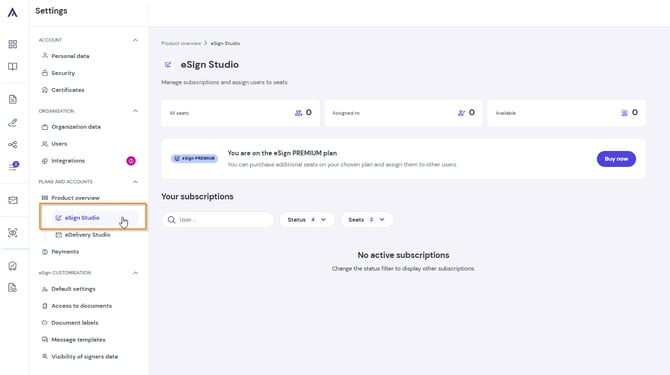
- Log in to your Autenti account.
- Go to the Settings tab.
- Access your purchased subscriptions under Product Overview -> eSign Studio.
How to assign a plan to an employee?
Assigning seats takes just a few clicks:
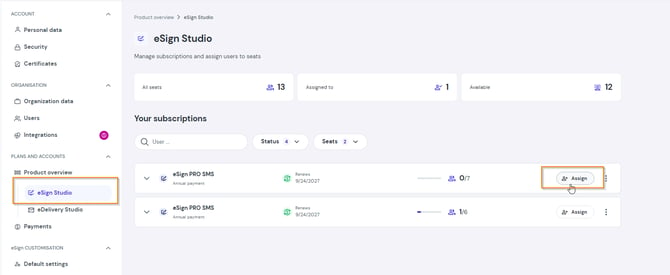
- Find the row with the relevant subscription and click Assign.
- Select one or more users from your organization.
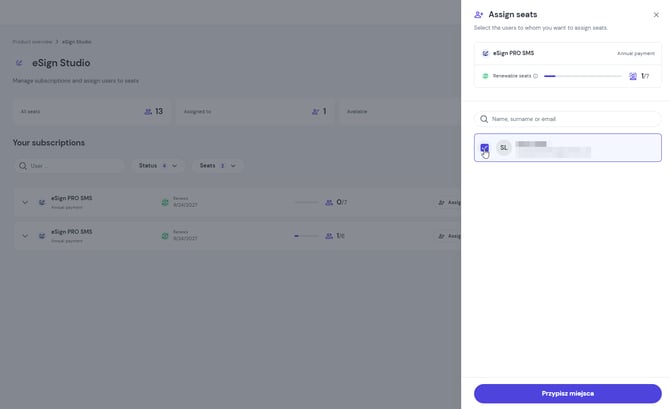
- Confirm your selection. The selected individuals will receive immediate access to the features included in the chosen plan.
Note: You can assign as many users as there are available open seats in your subscription.
Can I transfer an assigned seat from one user to another?
No, the system does not allow direct transfers or swaps of occupied seats between active users.
How do I free up a seat?
To reassign a plan to a different person (e.g., a new employee), you must first remove the current user from your organization. Once the account is removed, the seat returns to the available pool and can be assigned to someone else.
Need more seats?
If your team is growing and you want to keep all current users active, you can purchase additional seats at any time directly from the platform by clicking Buy now.