
To install the required software, go to the email titled “CenCert - rSign certification” and click the link included in it, or go directly to the provider's website: CenCert Download Page.
Step 1. Download and install the PEM-Heart software
Download and install the PEM-HEART Signature program on your computer in the version suitable for your operating system (Windows, macOS, or Linux).
Step 2. Start the activation process
After completing the installation, find and run the PEM-HEART rSign Configuration program on your computer, and then select the “Activation” option.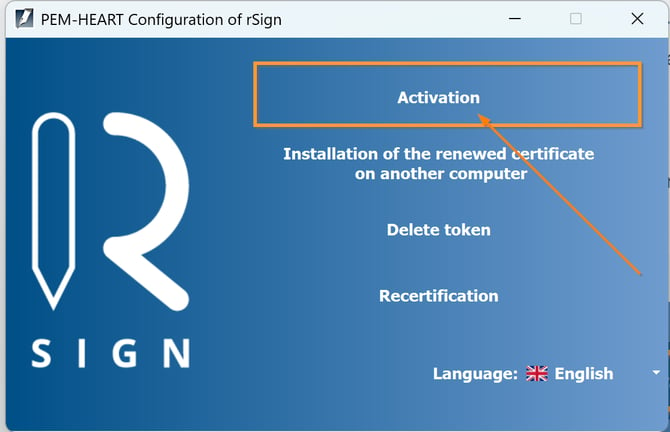
Step 3. Fill in the data in the program window
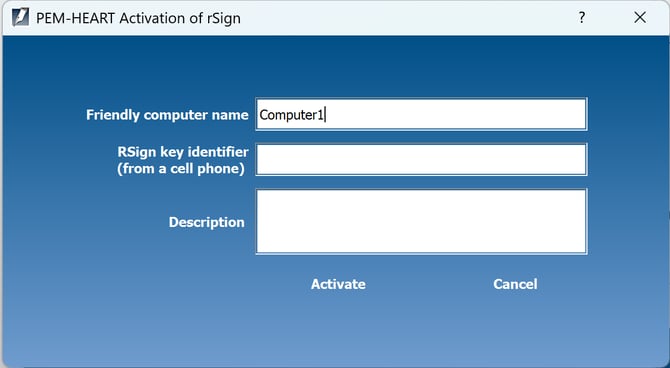
In the activation window, fill in the following fields:
- Friendly computer name – enter any easy-to-recognize name (e.g., Office computer or Home computer). This name will be displayed on your phone when approving signatures.
- rSign key identifier – to get it, follow these steps on your phone:
- Open the rSign mobile app.
- In the left side menu, select “Key ID”.
- Enter your app security PIN.
- Copy the displayed string of characters (e.g. 2e67cbef63) into the program window on your computer.
Step 4. Confirm activation on your phone
- In the program window on your computer, click the “Activate” button.
- In the rSign app on your phone, accept the instruction to configure the signature on the new device.
After confirming the operation, the system will display a message stating that the certificate has been added correctly.
Note: If the confirmation message does not appear on your phone screen right away, manually refresh the transaction list in the rSign app.
If you plan to use the signature on multiple devices, repeat the steps above (1–4) on each of them.
Step 5. Sign the document in PEM-HEART Signature
- Run the PEM-HEART SIGNATURE program on your computer.
- Click the “Sign” button.
- Click the “Add file” icon, select the file from your disk, and proceed by clicking “Next”.
- Indicate the area on the document where the visual signature preview should appear and confirm it with the “OK” button. (At this stage, you can also upload your own logo, which will be placed in the preview area).
Step 6. Authorize the signature with a PIN code
- Enter the PIN code displayed in the rSign mobile app into the program on your computer.
- Confirm the operation in the app on your phone to finally place the signature on the document.
By default, the signed file will be saved in the same folder where the original file is located.