
👉 Don't have a signature yet? [Select and buy an Autenti by InfoCert qualified signature]
What to prepare before the call?
Before starting the process, make sure you have the following ready:
- Physical ID document: A valid identity card (for Polish citizens) or a valid passport (for citizens of other countries). Photos, scans, copies of documents, and residence cards are not accepted.
- Mobile phone: Required to receive SMS codes and authorize transactions.
- Equipment: A device with a working camera, microphone, and a stable internet connection.
Certificate activation - Step-by-step guide
1. Open the invitation email
- Open the email sent to your address after purchase and click the Go to the video verification process button.
- On the page that opens, review the privacy policy and click Go to calendar.
2. Choose a meeting time
- Select a convenient time for your call.
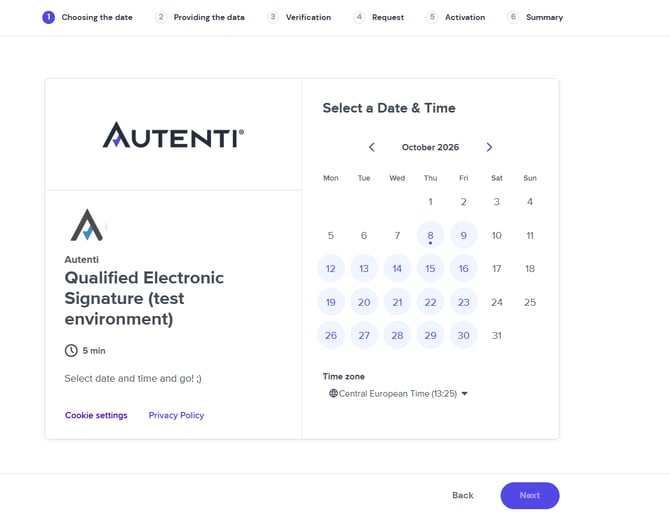
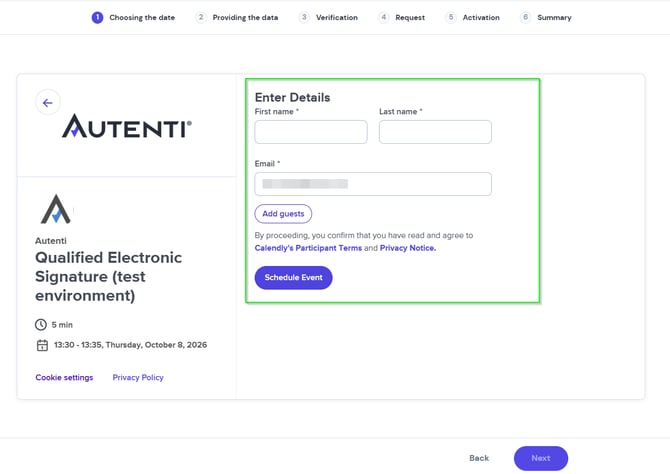
- Enter your basic contact details (first name, last name, email address) and confirm your choice. You will receive a confirmation email with a link to the call.
3. Fill in the form with your ID details
Fill out the personal data form used to issue your certificate. You can do this immediately after booking a time slot or later using the link in the confirmation email.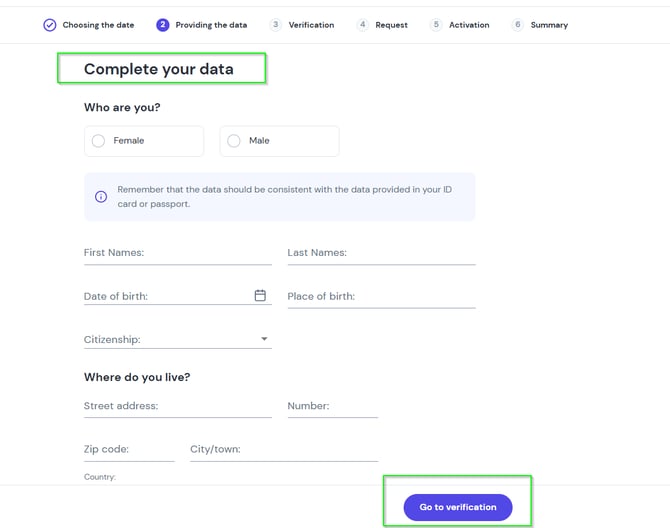
⚠️ Important – How to avoid application rejection:
The data in the form must match your identity document 100%. Any discrepancies will result in the rejection of your application and require you to repeat the video verification.
- Issuing authority: Enter the exact authority name as it appears on your document.
- Middle name: Include it only if it is explicitly written on your ID.
- Formatting: Pay close attention to avoid accidental spaces or typos.
4. Connect with the video verification specialist
- On the day of your appointment, open the reminder email (sent 15 minutes before the scheduled time) and click Start video verification.
- During the video call, the agent will compare the details in your application with your physical ID card or passport.
5. Set your PIN and submit the application
- After successful identity verification, the system will redirect you to submit your certificate application.
- Set a personal PIN code. Keep it secure and memorable - you will need it every time you sign a document.
- Authorize the transaction using the SMS code sent to your mobile phone.
6. Receive your login and start signing
- You will receive an email containing your login, which is used to sign the document.
👉 Tip: To quickly find this message, search your inbox for the exact subject line: „Congratulations! You have activated your Autenti by InfoCert certificate”.
Frequently Asked Questions & Troubleshooting
- Missing email with the meeting link or reminder
Solution: Check your Spam, Promotions, or Updates folders in your email inbox. You can also join the call directly using the link in your initial activation email. - Browser is blocking the camera or microphone
Solution: Make sure your browser's privacy settings grant permission to access your camera and microphone for this site. - Application rejected after the call
Solution: Rejections are most commonly caused by errors in the form (typos, missing middle names, or incorrect issuing authority). Fill out the form again, ensuring complete accuracy against your document, and schedule a new verification call. If you experience further issues at this stage, please contact our support team.
Need help?
If you encounter any difficulties at any stage of the activation process, please contact our support team:
- ✉️ Email: support@autenti.com
- 💬 Live Chat: Click the chat icon in the bottom right corner of the Autenti website.