
Step-by-step guide:
- Log in to the platform
Log in to your Autenti account. - Navigate to Autenti Classic
From the side menu, select Autenti Classic.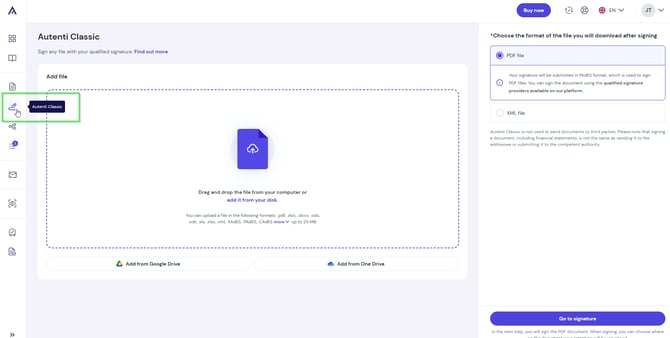
- Select file format
Choose the format of the document you want to seal - PDF or XML.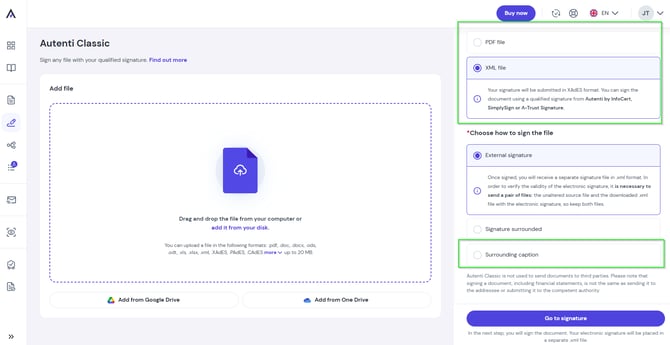
Note for XML files: For files intended for KSeF authorization, select the Enveloping signature option.
- Upload your document
Drag and drop the file from your computer or upload it directly from your local drive, Google Drive, or OneDrive.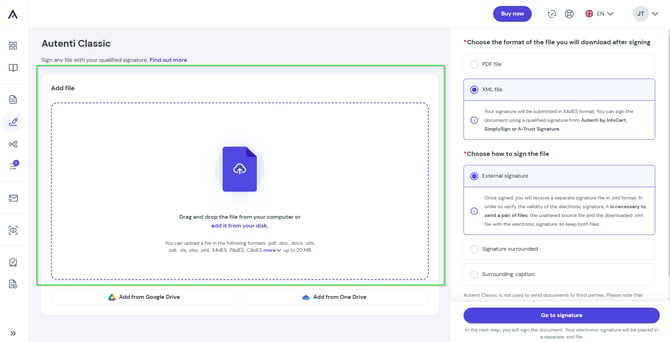
Note: You can only upload 1 file per transaction.
- Proceed to signing
Click the Go to signature button.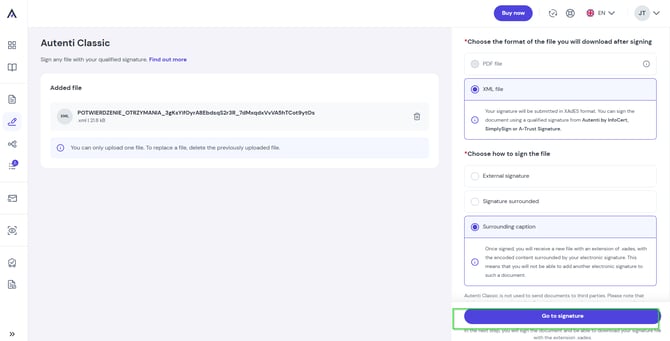
- Choose the authentication method
On the next screen, select the SimplySign qualified signature and accept the Declaration.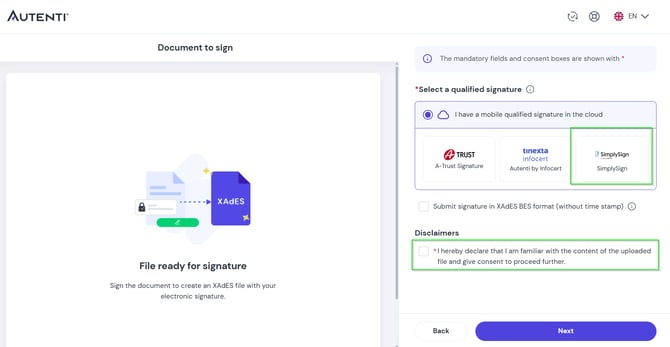
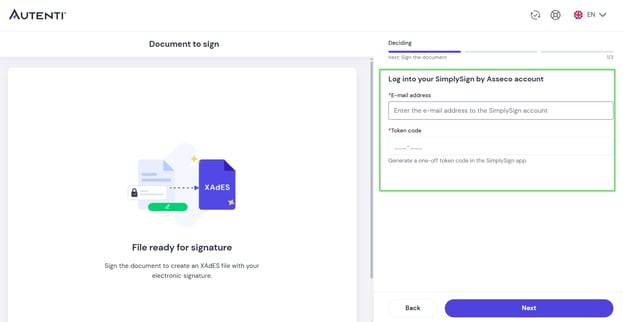
- Enter your SimplySign details
- In the Email address field, enter the email registered with your Certum Panel account.
- In the Token code field, enter the one-time OTP generated by your SimplySign mobile app.
- Select the appropriate seal
If you have multiple qualified certificates in your SimplySign account, select the one corresponding to your organization's seal. - Confirm with your PIN
Enter your individual PIN code (created during seal activation in the Certum Panel) and click Sign.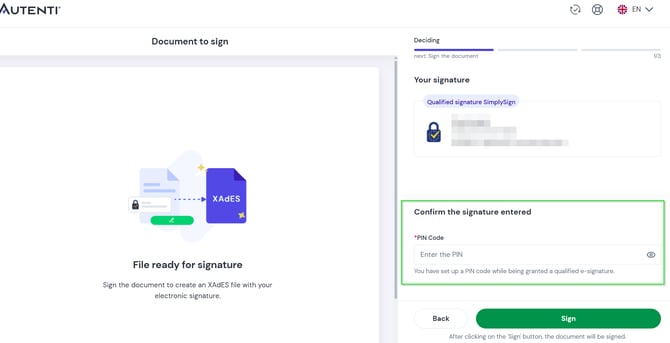
- Download your sealed document
Once successfully sealed, your document is ready. Click Download to save it to your device.