
To access these settings, go to:
Settings -> Document Access -> Control of recipients 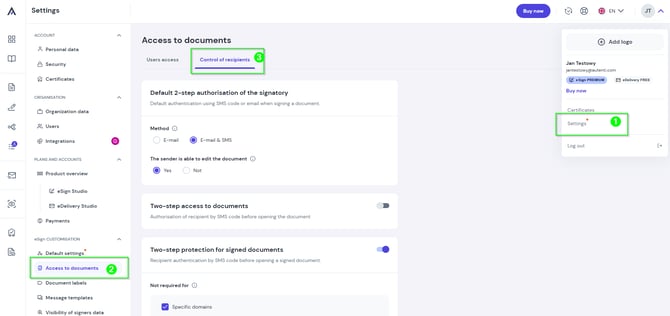
Why Use Recipient Control?
- Protect confidential data against unauthorized access.
- Increase the security of sent agreements and contracts.
- Handle legally demanding business processes.
Overview of Features
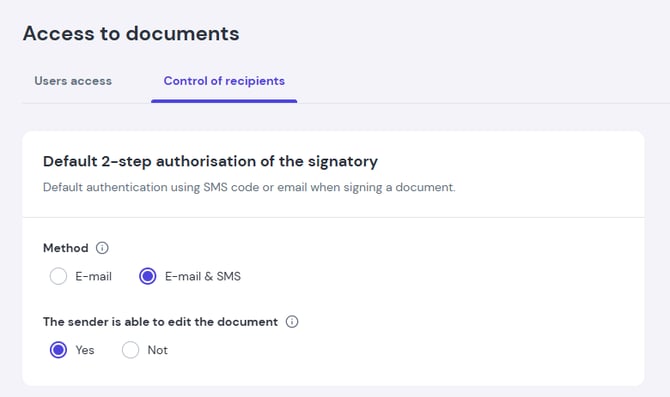
1. Default Two-Step Signer Authentication
Sets the default identity verification method for signers:
- Authentication methods: Email or Email & SMS.
- Sender permissions: The Super Administrator can enforce mandatory verification across all organizational processes or allow document senders to adjust this setting during creation.
2. Two-Step Document Access (Paid Add-On)
Protects document preview with a one-time SMS code sent to the recipient's phone number specified by the sender.
- How it works:
- The recipient opens the document link and clicks Send the SMS code.
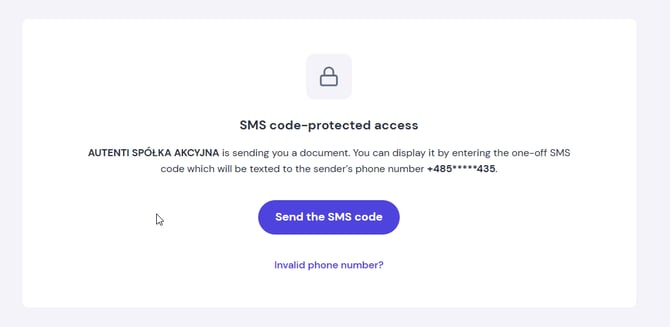
- They enter the one-time code received via SMS.
- Upon successful verification, the recipient gains access to view and sign the document.
- The recipient opens the document link and clicks Send the SMS code.
- Security lock: Entering an incorrect code 3 times locks access to the document for 1 hour.
3. Two-Step Protection of Signed Documents
Secures the final ZIP archive (attached to the email containing signed documents) with a password sent via SMS once all parties have signed.
- How it works:
- The recipient downloads the ZIP attachment from the email.
- Opening/extracting the archive requires software that supports password-protected ZIP files (e.g., 7-Zip).
- The recipient enters the password received via SMS (the message includes the document title, timestamp, and company name for easy identification).
⚠️ Important: The SMS passcode is sent only once. The message includes the document title and timestamp for easy identification.
How to Set Preferences and Exclusions
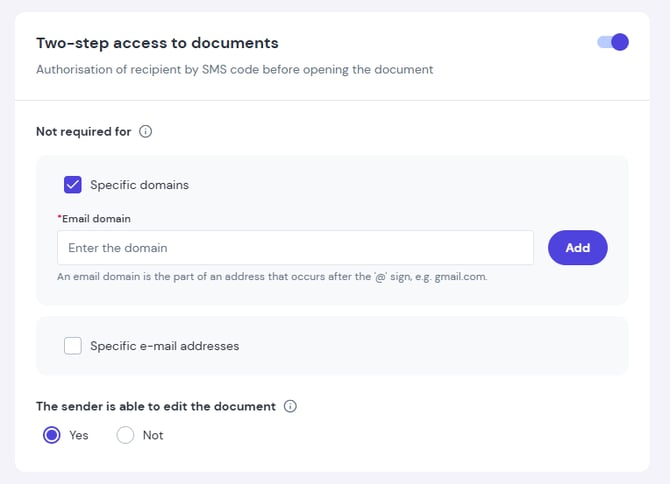
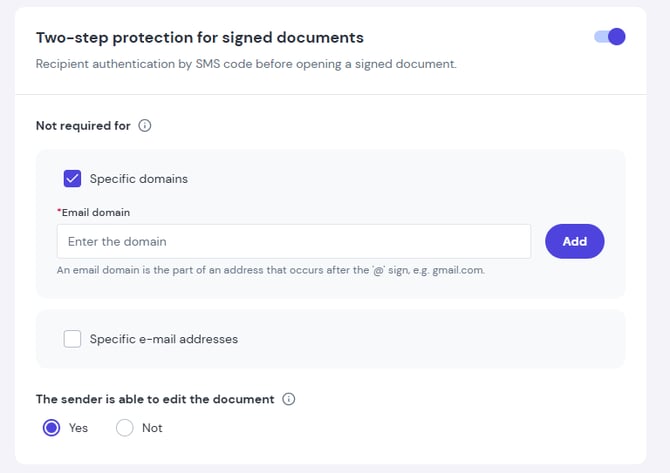
As a Super Administrator, you can define exclusions so that additional verification is not required for trusted recipients (such as internal colleagues).
- Go to Settings -> Document Access -> Control of recipients
- Locate the relevant section (Two-Step Document Access or Two-Step Protection of Signed Documents).
- In the Not required for section, select:
- Specific domains: Enter the email domain (e.g., company domain after @) and click Add.
- Specific email addresses: Enter the exact email address and confirm.
- Set Editable by document sender to decide whether senders can override this rule when sending documents.
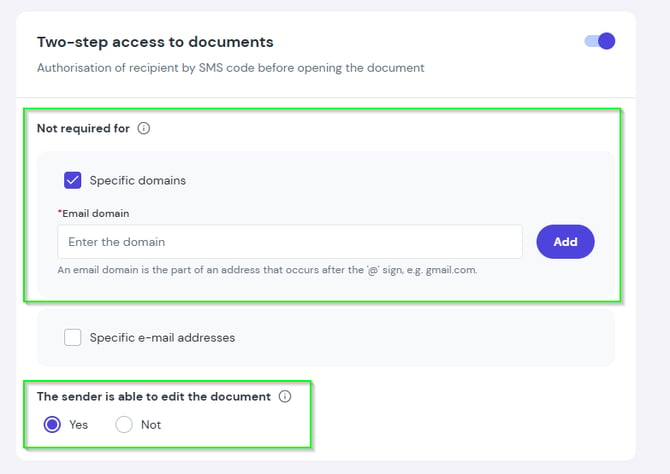
Note: Recipients using excluded domains or email addresses will not be prompted for SMS code verification.