
Important:
- Requirement: You can only modify recipients who have not yet performed any action on the document (neither signed nor declined).
- Availability: Available on the eSign PREMIUM plan or higher.
When to Use This Feature
- Unavailability: A signer is out of the office or on leave - reassign the document to an alternate person immediately.
- Typo or incorrect info: There is an error in the recipient's name or email address - update the information without restarting the entire workflow.
Step-by-Step Guide
- Locate the document
Go to your Document List or open the Document Details view.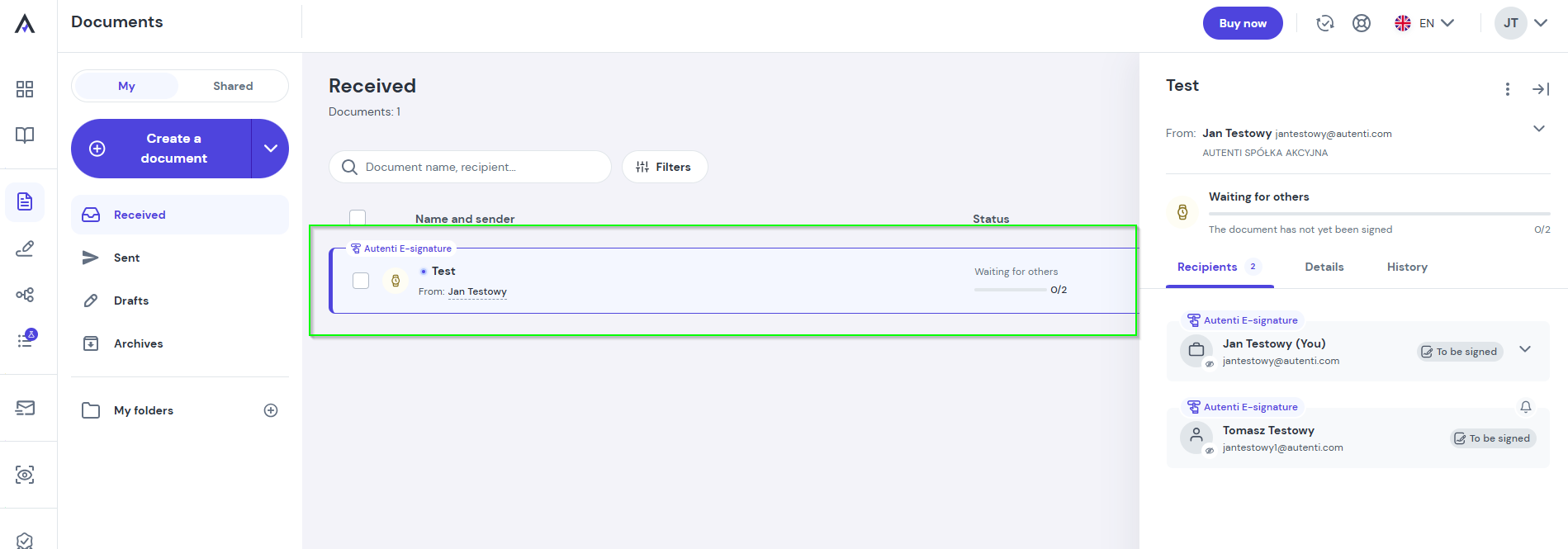
- Start editing
Click the three dots icon next to the document and select Edit recipients.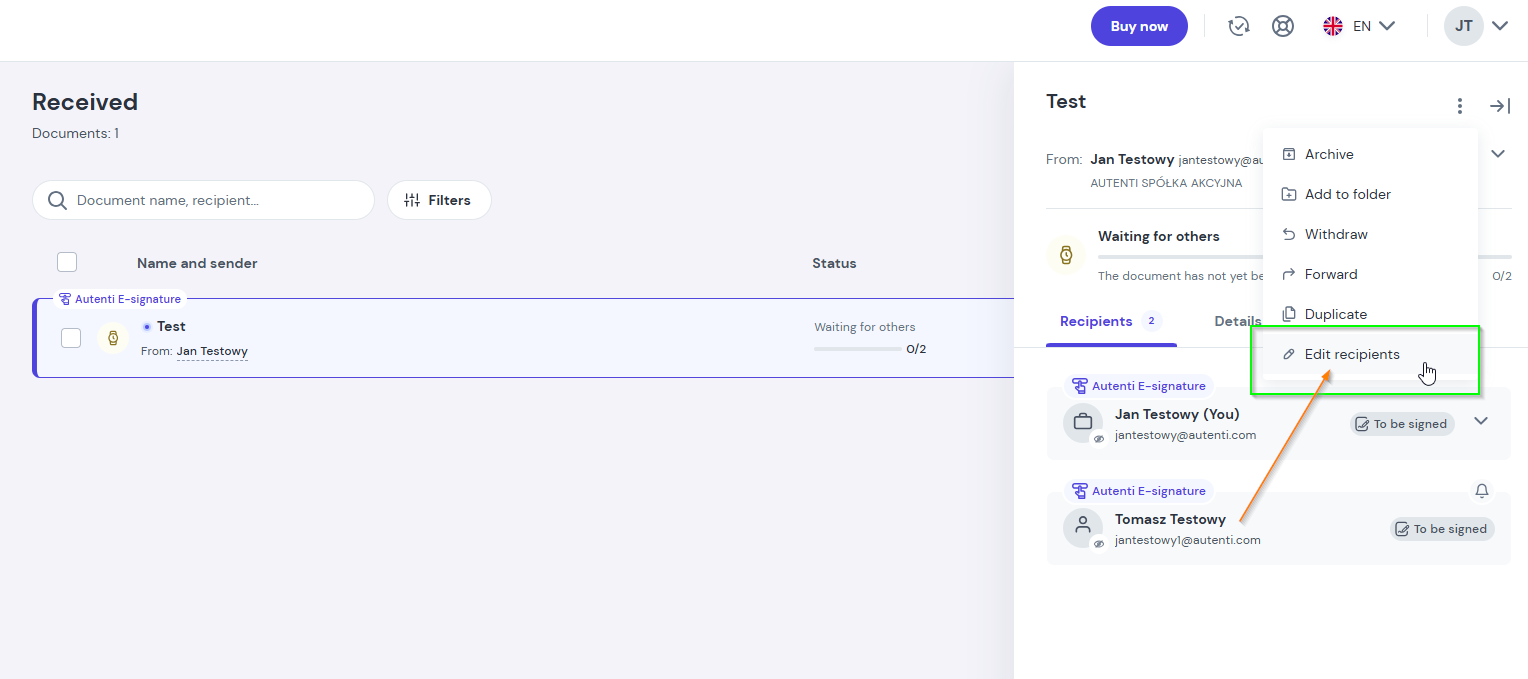
- Make changes in the Creator
In the editor view, find the recipient who has not yet taken any action:- Click Change recipient to assign the document to another person.
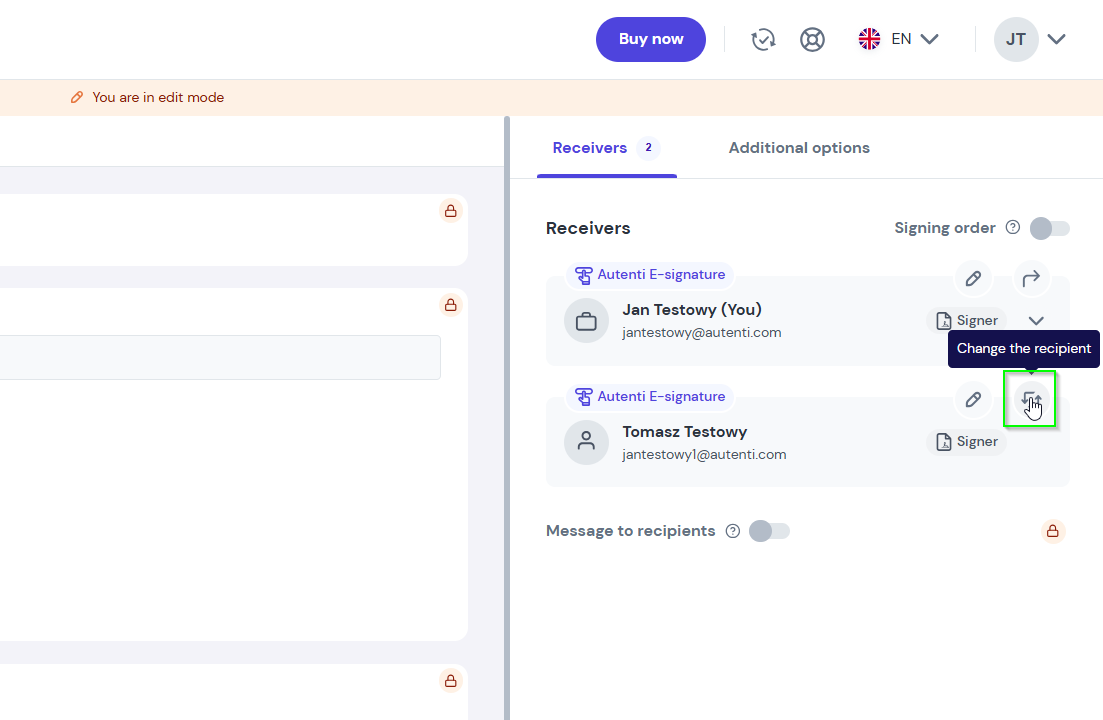
- Click Edit to update their contact details.
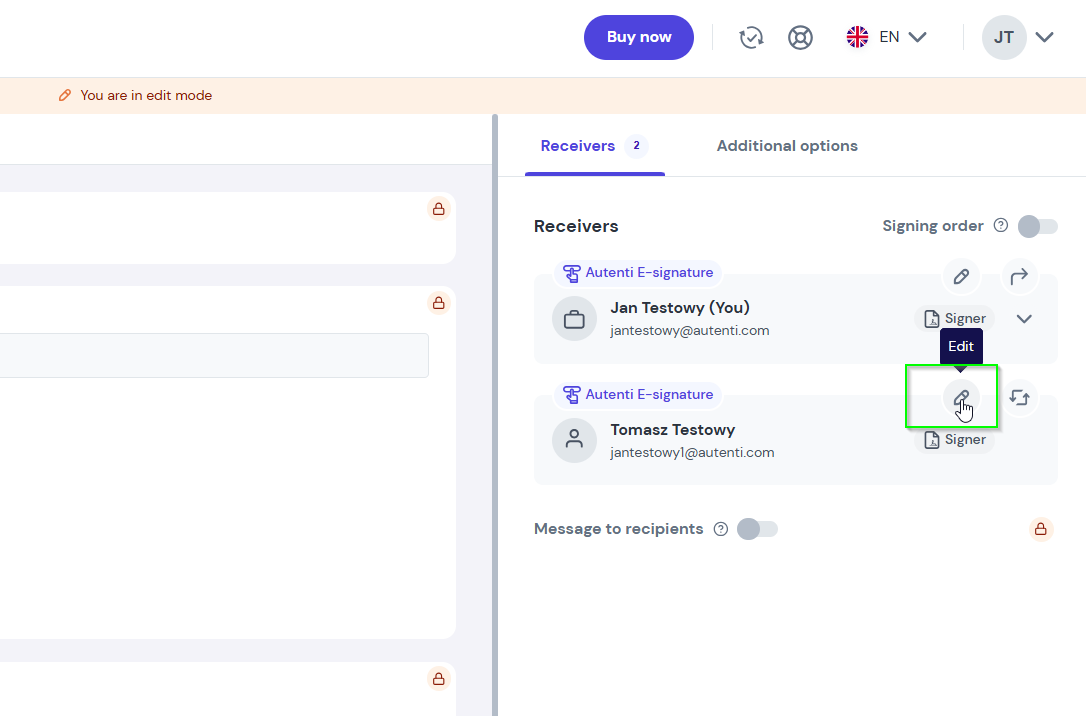
- Click Change recipient to assign the document to another person.
- Confirm your changes
Click Save to apply the updates.
What happens after confirming the changes?
- The new recipient immediately receives an email notification with a signing link.
- The previous recipient instantly loses access to the document.
- All other participants receive an automated notification informing them of the recipient update and the specified reason.