
Autenti by INFOCERT S.p.A.
The provider InfoCert does not offer an option to reset, change, or recover a forgotten PIN code.
- The PIN is created by the user after completing identity verification with a consultant.
- If you forget your PIN, you will lose the ability to sign documents.
- Only solution: You must purchase and activate a new qualified certificate.
SimplySign by CERTUM QCA
For SimplySign, you can reset your PIN code using your PUK code.
How to reset your PIN code (step by step)
1. Log in to the Certum Panel
Go to the Certum Panel page and log in using your active SimplySign certificate (use your login / email address and the token from the SimplySign mobile app).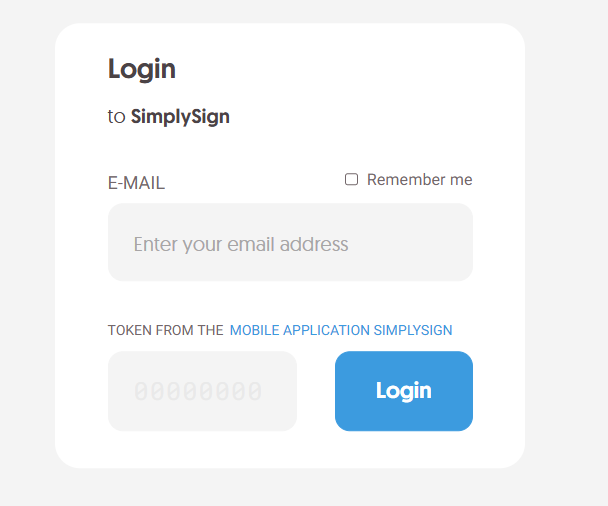
2. Go to Card Details
After logging in, you will see your virtual card and Card Details below it.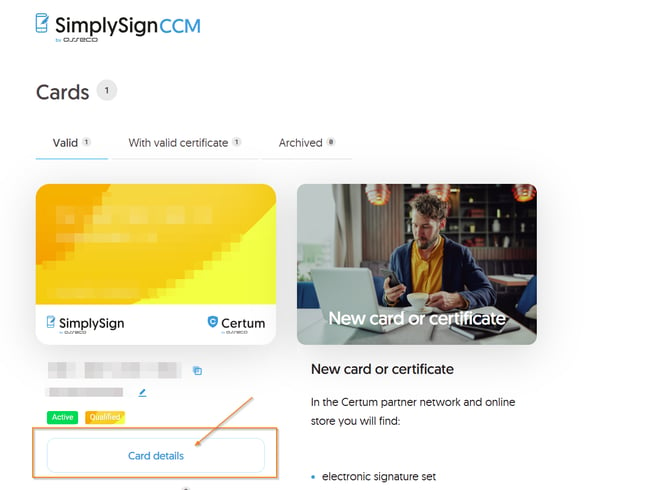
3. Reset your PIN
Select the option to change the PIN code and enter your PUK code to set a new PIN.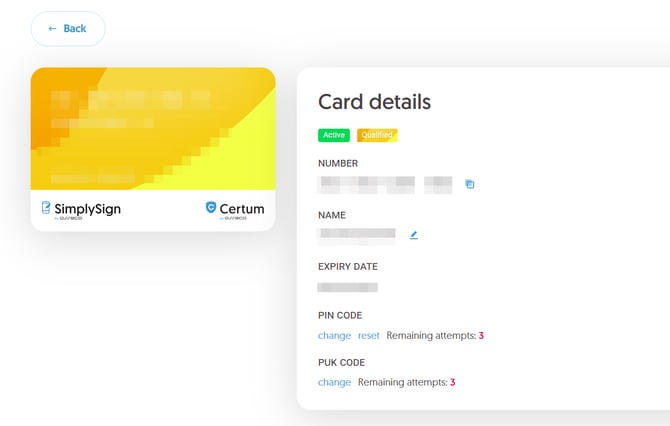
Changing the PUK code
In the Card Details section, click Change next to the PUK code field.
⚠️ Critical Warning (PUK Code)
You can enter an incorrect PUK code a maximum of 2 times. A third incorrect attempt will permanently block the certificate, making further use impossible. In this situation, purchasing a new certificate will be required.
mSzafir by KIR S.A.
Entering an incorrect PIN code 3 times will lock the mSzafir mobile app.
If you activated the app remotely:
-
Go to mszafir.pl and select Activate mobile application.
- Confirm your identity via mojeID (PKO BP, mBank, Pekao S.A., Bank Millennium, Inteligo).
- Go to Mobile Applications -> Select device -> Click Reset PIN (if you forgot your PIN) or Unlock (if you remember your PIN).
- Follow the on-screen instructions.
If you activated the app in a branch:
Visit a KIR branch in person. After verifying your identity, an employee will activate the new application on your device.
rSign by Cencert
The rSign app (iOS/Android) is used to authorize qualified signatures. Only one mobile device can be assigned to a single certificate at a time.
Requirements for transferring / recovering access on a new phone
Transferring / recovering signature access on a new phone is only possible if you meet all 3 conditions simultaneously:
- You know the PIN code for the rSign app set on your previous device.
- You have an up-to-date backup file created by rSign and saved off-device (e.g., on Google Drive, iCloud, or sent via email).
- You can receive an SMS code sent to the phone number registered in the rSign app.
💡 Tips for rSign users:
- Backup: The app notifies you whenever a backup needs to be created. The backup file is very small (a few dozen bytes) - remember to always save it in a safe place off your phone.
- Phone Number Change: If you change your phone number, update it immediately in the Cencert database via the rSign app before losing access to your old number.