
Key information before sending:
- Paid feature: The advanced e-signature service is a paid add-on. All signing costs are covered entirely by the sending organization. To enable this feature, contact us at sales@autenti.com
- Single-use verification: The recipient completes identity verification exclusively to sign the specified document. This verification cannot be reused for other purposes or for signing other documents.
Step-by-step guide: Sending a document for signature
- Log in to your account
Go to Autenti and log in to your company account.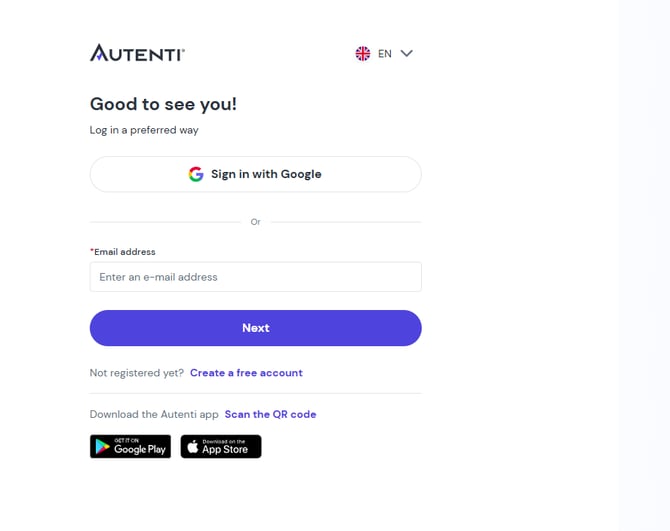
- Start the creation process
Click the Create a document button in the main navigation menu.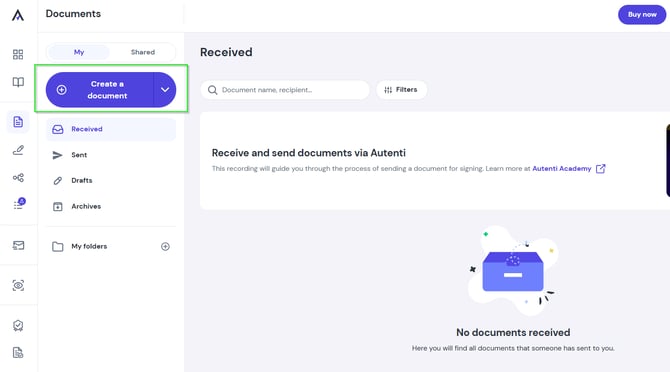
- Fill in primary details
Upload your file, type the document title, and add a message for the recipient.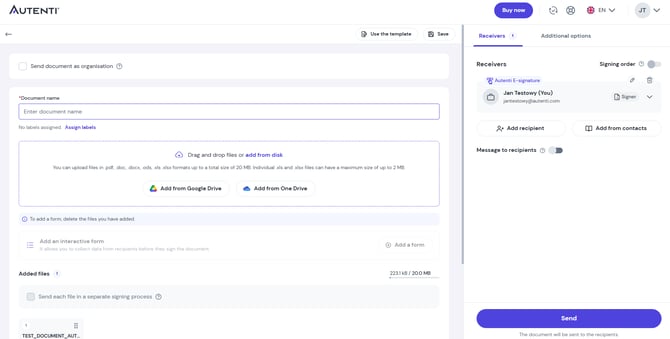
- Add the recipient
Enter the first name, last name, and email address of the signing party.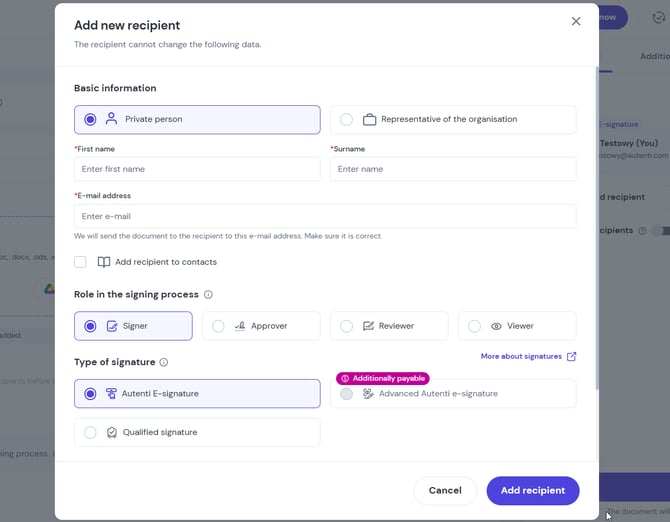
- Select the signature type
Choose Autenti Advanced E-Signature from the available signature options.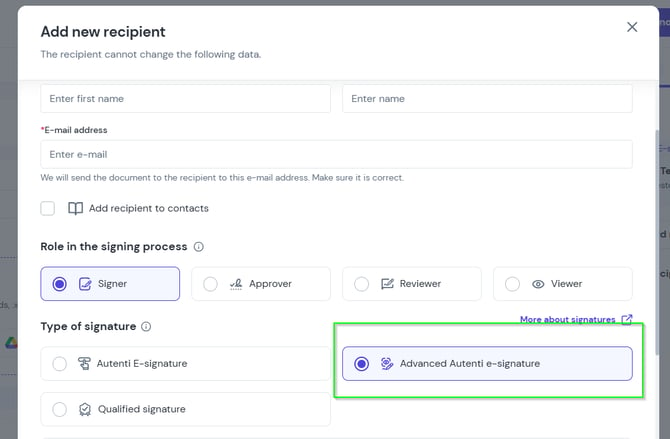
Note: If this option is greyed out (inactive), it means your account lacks the necessary permissions to send documents with an advanced e-signature. In this case, please contact our sales team (sales@autenti.com) or your company's account administrator.
- Set validity duration
Select the required signature validity period (custom validity periods can be arranged with our sales team).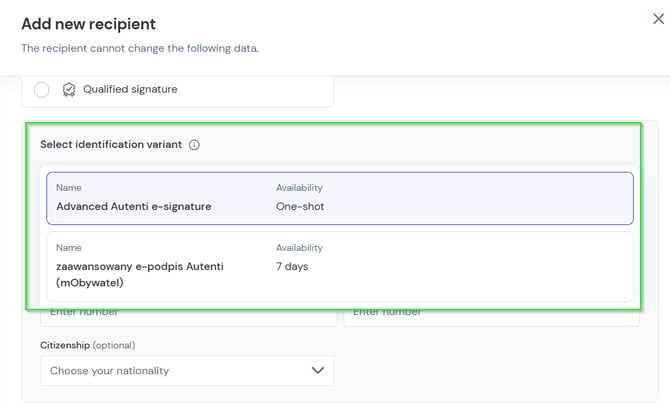
- Provide the recipient's phone number
Enter the recipient's mobile phone number. SMS code verification is mandatory for Autenti advanced e-signatures.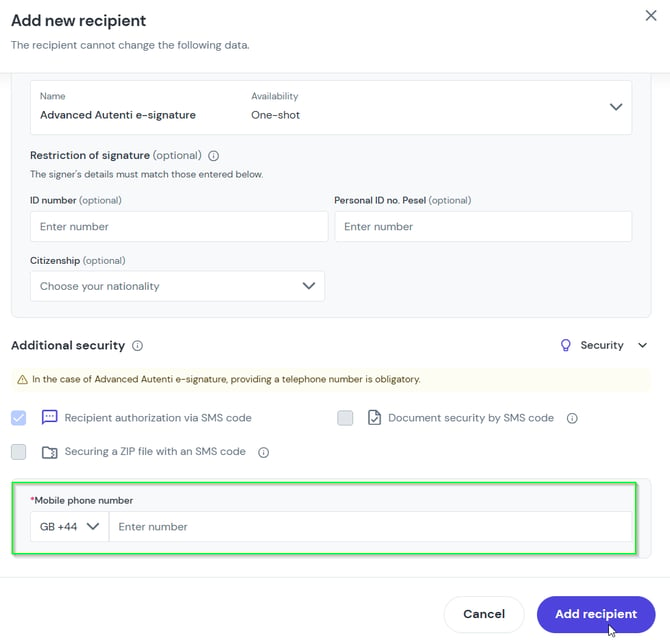
- Save your settings
Click Add recipient to confirm all details. - Send the document
Click Send. Your document will be dispatched immediately.
❓ Frequently Asked Questions (FAQ)
Do I need to fill in additional identification data (e.g., national ID or PESEL number)?
No, providing additional data is not required. If left blank, Autenti will collect all necessary verification details directly from the recipient during the process, matching only their first and last name.
When should I provide additional data?
Entering a national ID or document number enables automatic data cross-checking:
- If the ID or document number you entered does not match the recipient's actual verification details, the document will be automatically rejected.
- The recipient will be prevented from signing the document in case of a mismatch.